> For the complete documentation index, see [llms.txt](https://rplaylive.gitbook.io/creatorguide/llms.txt). Markdown versions of documentation pages are available by appending `.md` to page URLs; this page is available as [Markdown](https://rplaylive.gitbook.io/creatorguide/en/how-to/stream/lovense.md).
# Lovense
If you're here, you're probably (dare we say it) quite intimate with how Lovense works. As such, we've only included a basic guide of how to use Lovense to up your streaming game on RPLAY.
* [Go to Lovense](https://lovense.com)
* Most creators use the Lush 3 toy.
### Setting Up
First, download the required Lovense apps. There are two of them, both of which can be found [here](https://www.lovense.com/cam-model/guides/pc-phone).
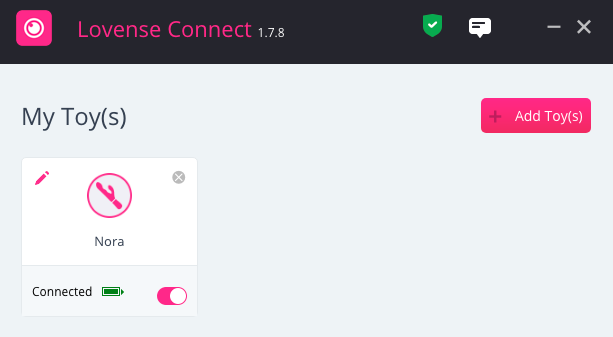
Next, open Lovense Connect and connect your toy to your PC.
{% hint style="info" %}
Lovense Connect must stay open throughout your stream to receive donations!
{% endhint %}
Now:
1. Open Lovense Browser
2. Toggle on Lovense Cam Extension
3. Login to the account you bought your Lovense toy with.
Great job! You're all set to stream now.
Click the Settings extension to go ahead.
### Streaming
While in Lovense Browser, click Cam Site and search & add RPLAY.
Check if your toy is connected. If Lovense Connect is open, it will connect automatically.
You can click the Settings wheel to adjust vibration strength.
Test your toy's reactions to donations before streaming by clicking the $ sign in Lovense Browser.
### Displaying Lovense Widgets On Stream
Click 'Step by step guide' like in the image below. Next, download Lovense Video Feedback and add it to OBS.
Select Visuals and choose any visual effects you like!
* Themes: Change the menu theme
* Stickers: Decorate your screen
* Tip Animation
### Notes
1. There's no separate Lovense widget in RPLAY's Live Studio. Let your viewers know that you're using Lovense by announcing it on your stream title or on your screen!
2. Make sure to keep both Lovense Connect and Lovense Browser open throughout your stream. **Take special care of Lovense Browser, as donations get cut off if you leave your page on Lovense Browser!**
Finally, the popup in the image below must be active in order to receive donations.
This popup must be active in order to receive donations.
.png)
.png)
.png)
.png)