> For the complete documentation index, see [llms.txt](https://rplaylive.gitbook.io/creatorguide/llms.txt). Markdown versions of documentation pages are available by appending `.md` to page URLs; this page is available as [Markdown](https://rplaylive.gitbook.io/creatorguide/howto/stream/add-ons/panels.md).

# 라이브 페이지 패널 설정

라이브 페이지에 이미지와 링크를 활용한 패널을 추가할 수 있습니다.

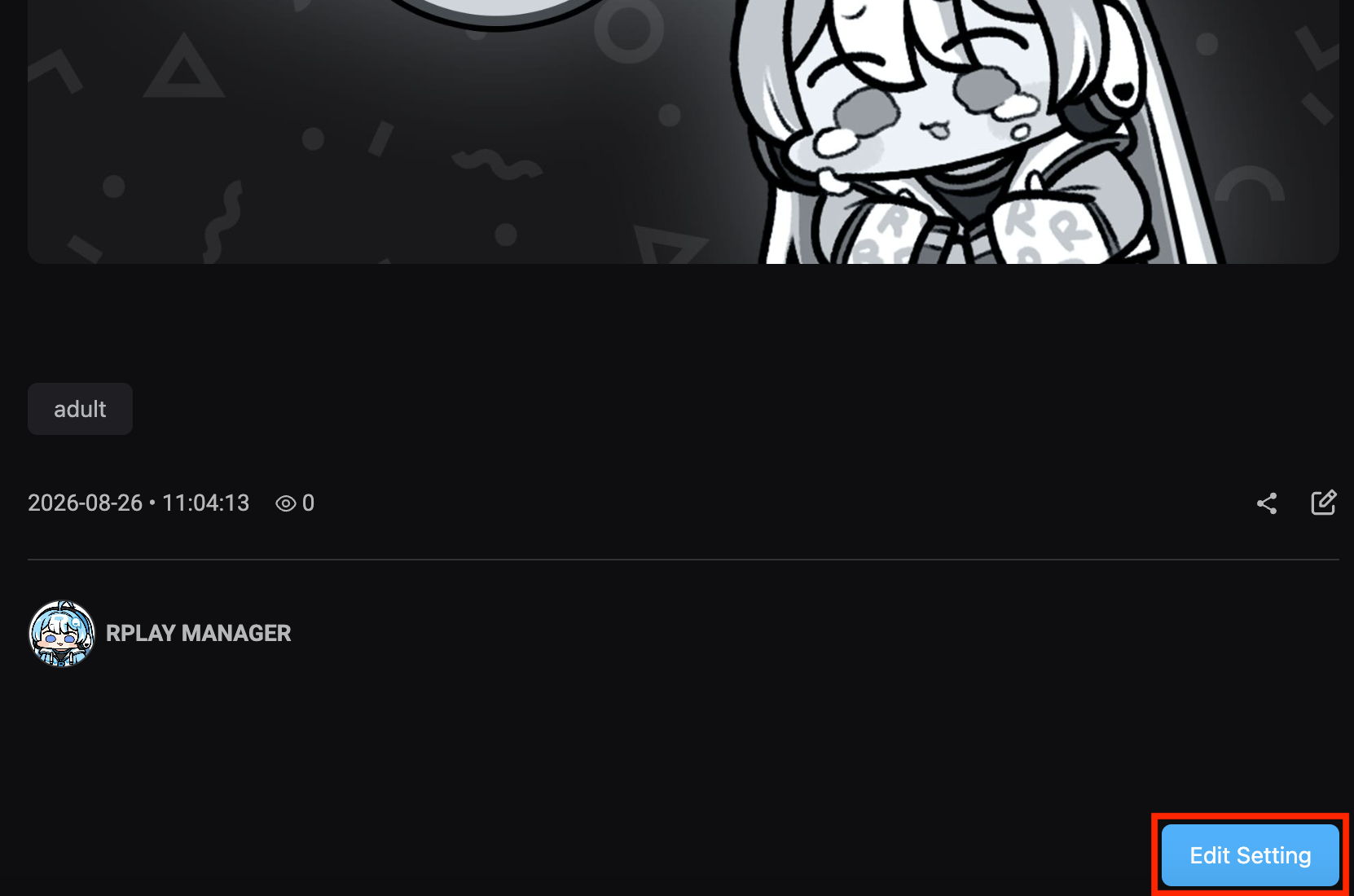
<figure><img src="https://2253158463-files.gitbook.io/~/files/v0/b/gitbook-x-prod.appspot.com/o/spaces%2FucXiNpiI2RctDLSMx3Pe%2Fuploads%2Fgit-blob-803c75931285792b7d603d55a6e855baf896bafb%2Flive-panel-edit-page.png?alt=media" alt="라이브 페이지의 설정 수정 버튼"><figcaption></figcaption></figure>

1. 내 라이브 페이지에서 `설정 수정` 버튼을 눌러주세요.

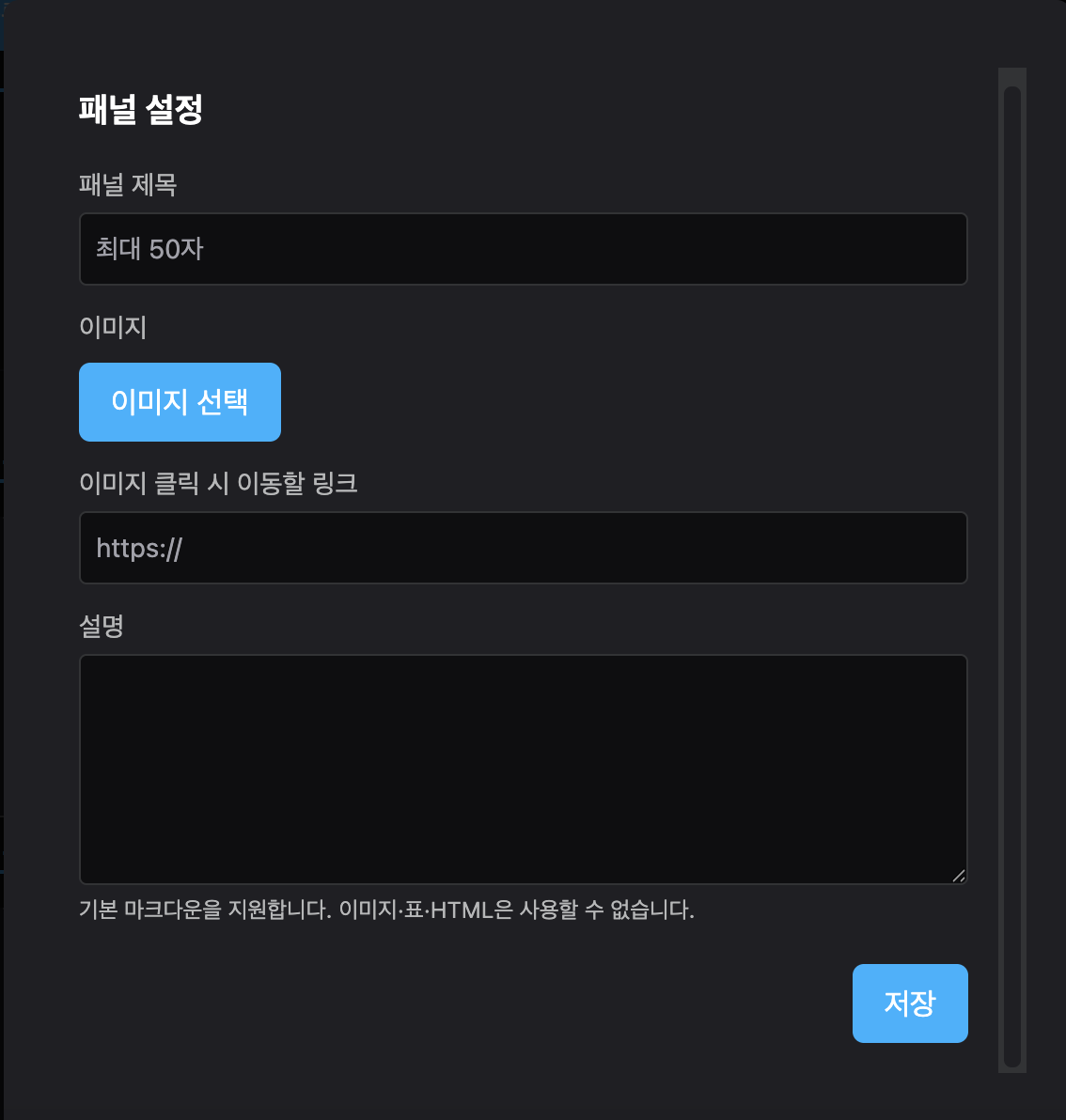
<figure><img src="https://2253158463-files.gitbook.io/~/files/v0/b/gitbook-x-prod.appspot.com/o/spaces%2FucXiNpiI2RctDLSMx3Pe%2Fuploads%2Fgit-blob-6a8afed9dea1d01d6106e5feaa04d52c1fe66756%2Fpanel-add-list-ko.png?alt=media" alt="패널 이미지, 링크, 설명 입력 화면"><figcaption></figcaption></figure>

2. 이미지를 선택하고 제목, 연결할 링크, 설명 등 필요한 정보를 입력한 후 저장해주세요.

<figure><img src="https://2253158463-files.gitbook.io/~/files/v0/b/gitbook-x-prod.appspot.com/o/spaces%2FucXiNpiI2RctDLSMx3Pe%2Fuploads%2Fgit-blob-c7f47cc6cd815c03c96c619d923d8d70355ac120%2Fpanel-content-ko.png?alt=media" alt="라이브 페이지에 추가된 이미지 패널"><figcaption></figcaption></figure>

3. 라이브 페이지에 클릭할 수 있는 이미지 패널이 표시됩니다.

<figure><img src="https://2253158463-files.gitbook.io/~/files/v0/b/gitbook-x-prod.appspot.com/o/spaces%2FucXiNpiI2RctDLSMx3Pe%2Fuploads%2Fgit-blob-ef2a1512d0dad1bd2e8551adf30c5c3fa5ccf2a3%2Fpanel-list-settings-ko.png?alt=media" alt="패널 목록 관람 등급과 제목 설정 화면"><figcaption></figcaption></figure>

4. `패널 목록` 옆의 수정 버튼을 누르면 패널 목록의 관람 등급과 제목을 설정할 수 있습니다.

{% hint style="info" %}
패널 외에도 `콘텐츠 목록`을 추가할 수 있습니다. 다시보기나 기타 추천 콘텐츠를 구성해 라이브 스트리밍 시청자에게 내 콘텐츠를 홍보해보세요.
{% endhint %}